How to Set Up Your Home Office Monitor: Complete 2026 Guide
Single 27-inch 4K IPS monitor for most workers. Add a second 27-inch in portrait for developers. 34-inch ultrawide for creative professionals. Do not use VA panels for color-critical or multi-monitor work.
How to Set Up Your Home Office Monitor Buying Guide
 Photo by Josh Sorenson / Pexels
Quick Verdict: Our top pick is the Gigabyte M32U 32-Inch 4K 144Hz Gaming Monitor (Best 4K Gaming/Work Hybrid) — Gigabyte M32U is a 32-inch 4K 144Hz IPS with HDMI 2.1 for next-gen console support. Priced at $799.99.
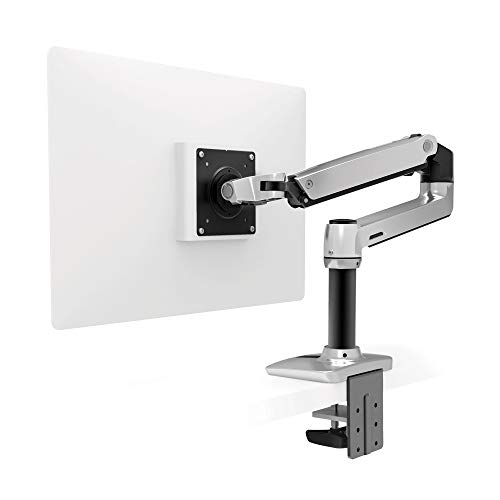
Budget Pick: The Ergotron LX Desk Monitor Arm — Single, Matte Black at $214.99 — Ergotron LX Arm positions any monitor at exact eye level with full tilt, swivel, and height adjustment.
Monitor Configurations by Work Type
General Office Work, Writing, Email
Single 27-inch 4K IPS monitor. 4K at 27 inches gives you 163 PPI -- sharp enough that text aliasing is invisible. IPS panel provides wide viewing angles and accurate color without the VA panel's contrast blooming in dark scenes. Refresh rate of 60Hz is sufficient for non-gaming tasks.
Why 27-inch over 24-inch: 27-inch at 4K is the sweet spot where UI elements at 100% scaling are comfortable without being large. 24-inch at 4K requires 125-150% UI scaling on Windows, losing the resolution advantage.
Software Development
Two monitors: primary 27-inch 4K landscape (code), secondary 24-27-inch portrait rotated 90 degrees (documentation, logs, or terminal). Portrait mode for a secondary is the underrated developer setup -- a 1080p panel rotated 90 degrees gives you 1920 pixels of vertical space, showing 60+ lines of code without scrolling.
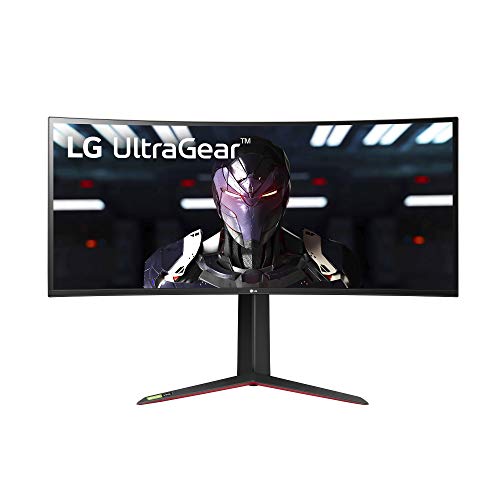
Alternative: single ultrawide 34-inch 3440x1440. Equivalent to two 24-inch panels side by side with no bezel gap. Better for split-screen work; not as flexible as separate monitors for different rotation needs.
Photo and Video Editing
Color accuracy is critical. Minimum: IPS panel with 95% sRGB. Better: 99% sRGB + P3 wide gamut coverage, factory-calibrated with Delta E under 2. The LG 27UK850 covers 95% DCI-P3. For video: 32-inch 4K IPS with HDR400 capability. Do not use VA panels for color-critical work -- VA has viewing angle color shift that affects color judgment.
Gaming + Work Combined
32-inch 4K 144Hz IPS (Gigabyte M32U, LG 32GN650). The 144Hz refresh rate improves gaming responsiveness; the 4K resolution serves work tasks. Adaptive sync (G-Sync Compatible or FreeSync) prevents screen tearing. HDMI 2.1 supports 4K 144Hz from a modern GPU or PS5/Xbox Series X.
Panel Types: What Actually Matters
| Panel Type | Strengths | Weaknesses | Best For |
|---|---|---|---|
| IPS | Wide viewing angles, accurate color, consistent brightness | Lower contrast ratio (1000:1 typical) vs VA | General work, color-critical tasks, multi-monitor setups |
| VA | Higher native contrast (3000-5000:1), deeper blacks | Color shift at off-angles, slower response time, smearing in dark scenes | Movies, dark-room use; not for office work |
| OLED | Infinite contrast, perfect blacks, fast response | Burn-in risk with static UI, high cost, limited 4K options at reasonable prices | Premium creative work, gaming if budget allows |
| TN | Fastest response time, lowest cost | Poor color accuracy, narrow viewing angles | Competitive gaming only; not recommended for work |
Resolution Guide
1080p: Fine at 24 inches, blurry at 27 inches. Not recommended for new purchases -- you'll see pixel aliasing at normal viewing distances.
1440p (2K): Sweet spot for 27-inch gaming monitors (higher refresh rates available with less GPU demand than 4K). For work: acceptable but text isn't as sharp as 4K at the same size.
4K (3840x2160): Recommended for 27-inch+ work monitors. UI elements and text are noticeably sharper than 1440p. GPU-intensive for gaming but irrelevant for office tasks.
5K/6K: Only relevant for Apple Studio Display and Pro Display XDR territory; not necessary for most use cases.
Eye Strain Reduction
Features to prioritize: Flicker-free backlight (DC dimming vs PWM -- PWM flicker at low brightness causes headaches for sensitive users). Low blue light mode (reduces 480nm light emission; useful for evening work). Matte anti-glare coating (reduces reflections in bright rooms; glossy looks better but causes eye strain).
The 20-20-20 rule: every 20 minutes, look at something 20 feet away for 20 seconds. No monitor technology eliminates eye strain from extended near-focus without breaks.
Explore Our Comparison Pages
- Best Monitors 2026 -- By size, resolution, and use case
- Best Ultrawide Monitors 2026 -- 34-inch and 49-inch options
- Best 4K Monitors 2026 -- IPS picks for work and creative tasks
- Best Monitor Arms 2026 -- Get your screen at eye level
- Ergonomic Desk Setup Guide -- Monitor position and complete setup tiers
More Monitor Accessories
- Best Monitor Light Bars — Desk illumination without screen glare
- Best Dual Monitor Stands — Free-standing two-screen solutions
- Best Monitor Stand Risers — Simple height boosters
- Best Laptop Stands for Desk — Use your laptop as a secondary display
Recommended YouTube Channels
For monitor configuration and display technology deep dives:
- Hardware Unboxed — The most rigorous monitor testing on YouTube; panel uniformity, color accuracy, HDR measurements.
- Ali Abdaal — Monitor setup workflow videos covering productivity applications.
- BTODtv — Monitor arms, desk accessories, and ergonomic positioning guides.
Related Guides:
- How to Set Up Your Monitor: Single vs Dual vs Ultrawide — productivity research and the right layout for your work type
- How to Build a Home Office That Actually Works — desk, chair, monitor, lighting, and peripherals in priority order
- How to Build a Productive Work-From-Home Setup — five upgrades in order of ROI for remote workers
At a Glance
Showing 3 of 3 products

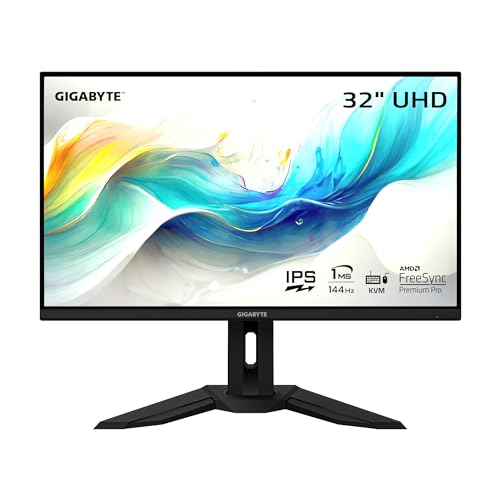
Gigabyte M32U 32-Inch 4K 144Hz Gaming Monitor
“The best value 32-inch 4K gaming monitor. Dual HDMI 2.1, USB-C, and KVM at a competitive price.”
See Today’s Price →What we like
- Dual HDMI 2.1 ports
- USB-C DisplayPort Alt Mode
- 32-inch SS IPS panel
- Built-in KVM switch
- ~$350-450 — strong value at 32 inches
Watch out for
- DisplayHDR 400 — basic HDR certification
- 32-inch is a larger desk footprint
- Fewer confirmed reviews than LG/Samsung
Read Full Analysis
The Gigabyte M32U is the most connectivity-complete 32-inch 4K monitor in this price tier — dual HDMI 2.1 ports, USB-C DisplayPort Alt Mode, and a built-in KVM switch in a single panel address the full range of modern home office and gaming connection scenarios. Dual HDMI 2.1 is relevant for anyone running a gaming console alongside a PC: both a PlayStation 5 and an Xbox Series X can connect simultaneously and deliver native 4K at high refresh rates without a switch box. The KVM switch is the most practical feature for multi-device home office setups — it routes your keyboard and mouse between two connected computers via button press or keyboard shortcut, eliminating a separate KVM peripheral. The 32-inch SS IPS panel at 4K delivers high pixel density without requiring display scaling adjustments that can blur text on some applications. At approximately $350-450 (prices shift frequently), it competes directly with the LG 34GP83A-B ultrawide at $680 on a per-dollar basis. The Gigabyte offers higher resolution per panel area; the LG offers the 21:9 ultrawide ratio that benefits multitasking users who want expanded horizontal workspace. Against the ASUS ProArt PA279CRV at $349, the Gigabyte prioritizes connectivity breadth and refresh rate; the ProArt prioritizes factory-calibrated color accuracy for creative work. The M32U is the correct choice for users who game and work from the same display and need connections for both simultaneously.
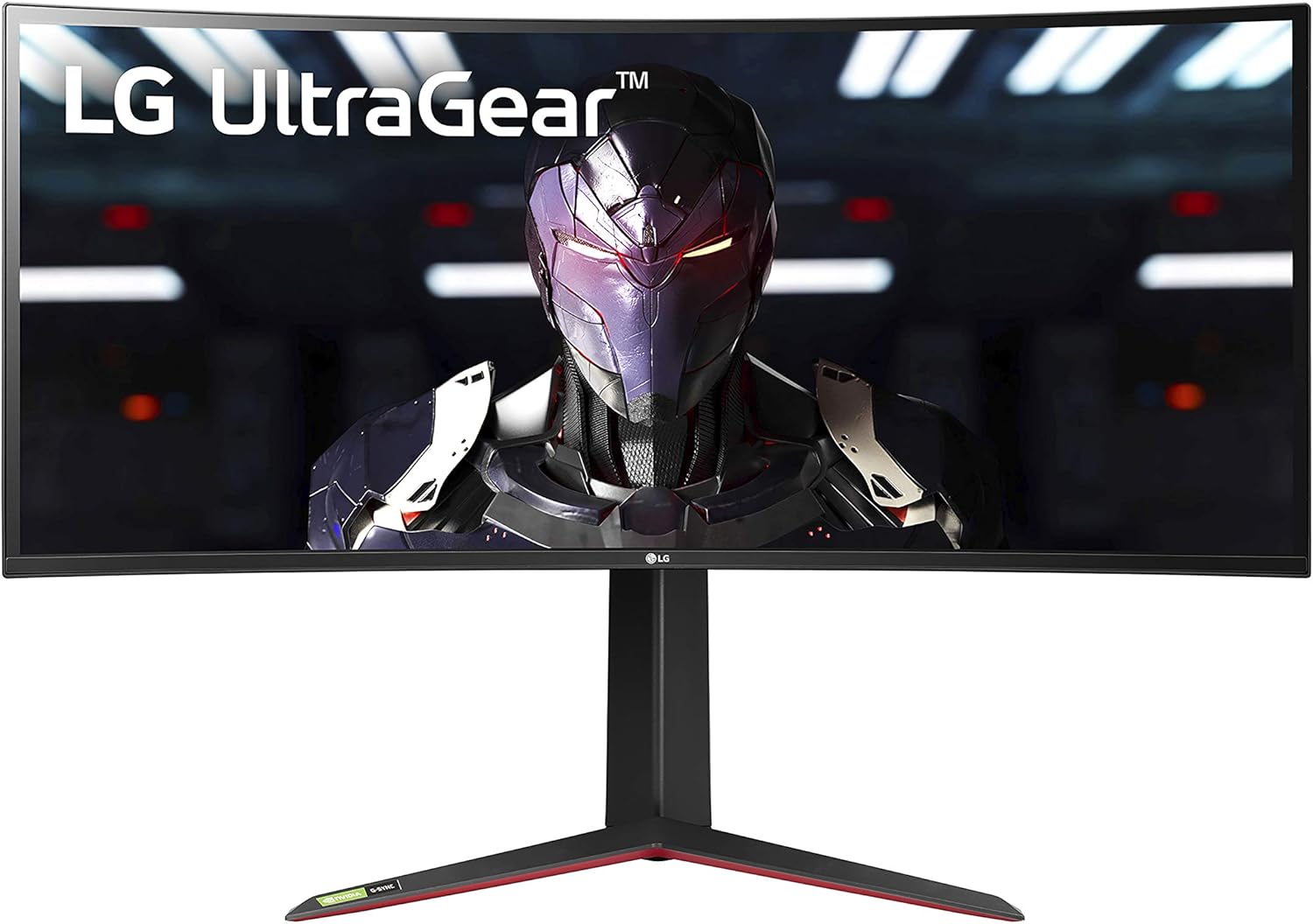
LG 34GP83A-B 34-Inch Nano IPS Ultrawide Gaming Monitor
“The best value ultrawide gaming monitor. Nano IPS, 160Hz, and G-SYNC in a proven package at a mid-range price.”
See Today’s Price →What we like
- Nano IPS — 98% DCI-P3 for gaming + creative work
- 160Hz at 3440x1440
- G-SYNC + FreeSync Premium Pro
- 1800R curve for immersive gaming
- ~$400–500 — best value ultrawide
Watch out for
- DisplayHDR 400 — basic HDR
- 1800R curve not for all desk setups
- No USB-C connectivity
Read Full Analysis
The LG 34GP83A-B is the ultrawide standard for home office setups that benefit from horizontal workspace expansion — the 3440x1440 resolution at 34 inches provides the equivalent of a 27-inch 1440p monitor plus a roughly 7-inch productivity panel alongside it, in a single continuous display with no bezel gap. For workflows that involve reference material alongside active editing — video editors checking a timeline while watching playback, developers with code and documentation side by side, or financial analysts with a spreadsheet and dashboard simultaneously — the ultrawide format eliminates window-switching in a way that a second 27-inch monitor cannot because it keeps everything in a single focal plane. The Nano IPS panel's 98% DCI-P3 coverage makes it suitable for color work alongside gaming, unlike most gaming ultrawides that sacrifice color accuracy for speed. The 1800R curve is subtle enough that most users adapt immediately but reduces glare from overhead lights across the wide panel surface. At $680, it costs $230 more than the Gigabyte M32U. The premium is justified if the ultrawide format directly serves your workflow — for pure gaming or single-window focus work, the M32U's higher resolution density and dual HDMI 2.1 is more practical at lower cost. The LG's absence of USB-C means laptop users need a dedicated DisplayPort or HDMI cable rather than a single-cable dock connection.

Ergotron LX Desk Monitor Arm — Single, Matte Black
“The Ergotron LX is the definitive monitor arm — no arm at any price matches its combination of smooth adjustment, build quality, and long-term reliability.”
See Today’s Price →What we like
- CF-motion technology delivers buttery-smooth, fingertip-force adjustment
- 34 lb weight capacity handles ultrawide and large gaming monitors
- Full range of motion: 13 inches height, 360° rotation, +75°/-5° tilt
- Integrated cable management channels hide all cables cleanly
- Both desk clamp and grommet mount hardware included
- Rock-solid hold — zero creep or drift after positioning
Watch out for
- Premium price — significantly more expensive than budget alternatives
- Overkill for lightweight 24-inch monitors that don't need 34 lb capacity
- Initial setup and tension calibration takes 15–20 minutes
Read Full Analysis
The Ergotron LX is the correct monitor arm for a home office setup because it solves the ergonomic problem that monitor stands create: a fixed height position that places the screen at the manufacturer's default rather than at your eye level. Monitors set too low cause chin-drop and neck flexion that accumulates into cervical strain over long sessions; too high forces chin-up that loads the upper trapezius. The LX adjusts 13 inches in height with fingertip force, has no creep or drift after positioning, and holds that position for years without re-tensioning. The 34 lb weight capacity handles ultrawide panels up to 34 inches — covering both the Gigabyte M32U and LG 34GP83A-B on this page without requiring a heavy-duty arm upgrade. Integrated cable management channels route power, HDMI, and USB cables internally so they do not hang across the desk surface. Both desk clamp and grommet mount hardware are included. At $215, it costs more than most budget arms ($40-80), and the difference is build quality and adjustment mechanism — budget arms typically use spring-loaded mechanisms that wear and drift within a year of daily repositioning. The Ergotron LX uses a friction-joint system that does not degrade. The right purchase sequence for a home office monitor setup: select the monitor first, confirm the arm fits the monitor's weight and VESA pattern, then add the LX. It fits virtually all monitors sold in this comparison.
Frequently Asked Questions
Should I get a single 27-inch 4K or two 24-inch 1080p monitors?
Is 4K necessary or is 1440p good enough?
What's the difference between IPS and VA panels for office work?
Is OLED worth it for a home office monitor?
How far should I sit from my monitor?
How We Analyze Products
We analyze Amazon review data — often thousands of reviews per product — to surface patterns that individual buyers miss. Our process aggregates star ratings, review counts, and buyer sentiment at scale, identifying which strengths and weaknesses appear consistently across the largest review samples available. The 7,266+ reviews analyzed on this page represent real verified-purchase feedback from Amazon buyers.
Each product earned its placement through data: total review volume, average rating, and the specific praise and complaints that repeat most often across buyers. No manufacturer paid for placement on this page. Products appear here because buyers endorsed them at scale, not because a company asked us to feature them.
We use AI to summarize review sentiment — not to fabricate opinions, but to condense what thousands of buyers actually wrote into a readable format. The pros and cons you see reflect the most common themes found in verified purchaser reviews, paraphrased for clarity. We do not claim to have accessed Reddit, YouTube, or specific publications in generating these summaries.
Prices shown reflect Amazon pricing at the time this page was last generated. Click “See Today’s Price” to get the current live price on Amazon. Read our full methodology →