How to Choose a NAS Drive (2026 Buying Guide)
For home use with up to 10 TB of data: a Synology DS223 2-bay NAS ($300) with two WD Red Plus 4-6TB NAS drives in RAID 1 ($80-120 each). Upgrade to a 4-bay DS423+ for larger collections or multiple simultaneous users.
At a Glance
| # | Product | Award | Price |
|---|
How to Choose a NAS Drive (2026 Buying Guide) Buying Guide
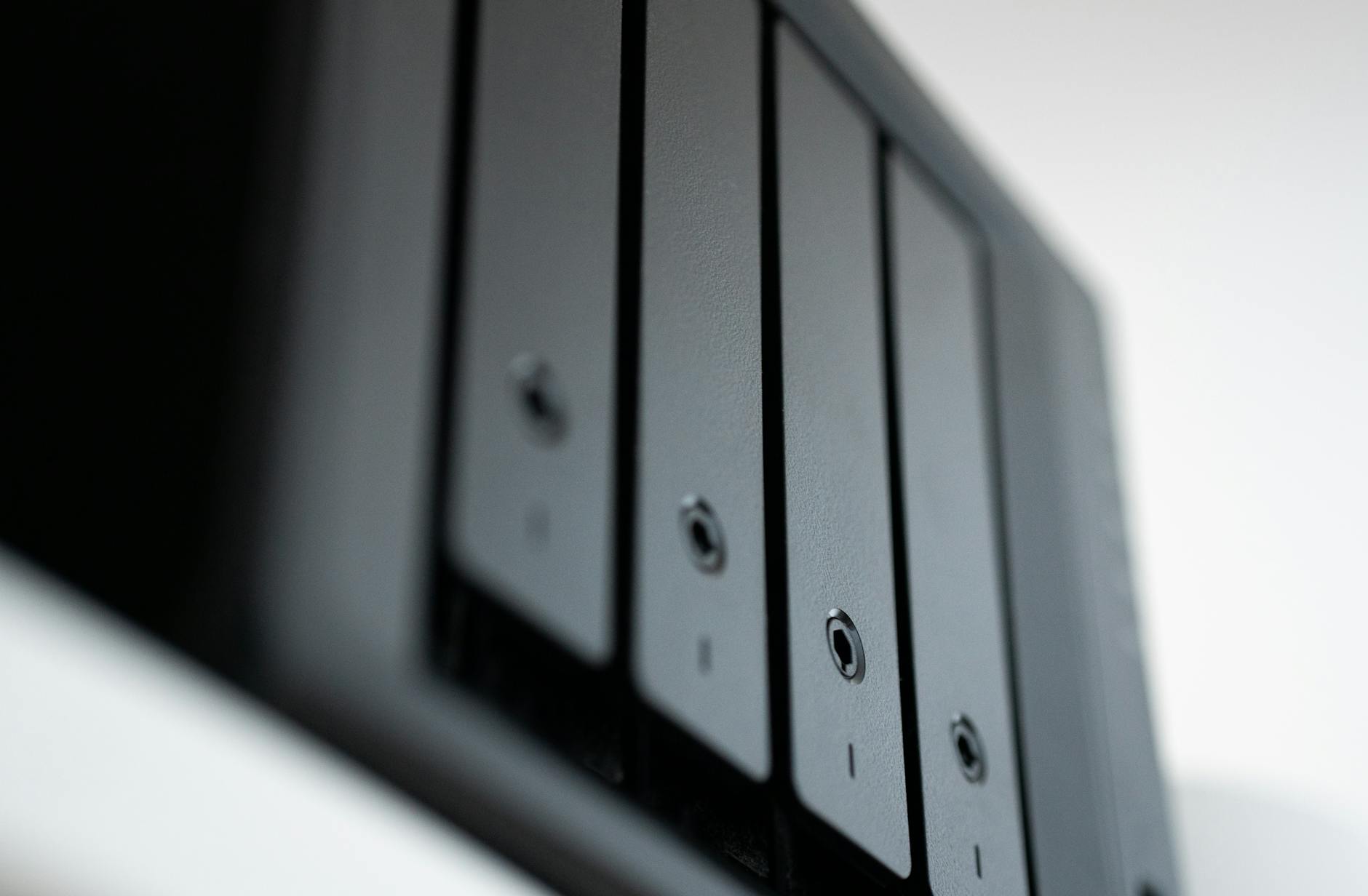 Photo by Jakub Zerdzicki / Pexels
A NAS (Network Attached Storage) is a dedicated file server for your home or office network. It provides always-on access to your files from any device, automated backups without cloud subscription fees, and protection against drive failure through RAID. Choosing the right NAS requires matching the enclosure, drives, and RAID configuration to your actual storage needs — undersizing leads to constant upgrades; oversizing wastes significant money.
What a NAS Does That Cloud Storage Does Not
Cloud storage (Dropbox, Google Drive, iCloud) charges monthly, throttles large uploads, and requires internet access to retrieve your own files. A NAS stores data on-premises — accessible on your LAN at gigabit speeds without internet, without monthly fees, and without any file size or bandwidth limits. Trade-offs: a NAS requires upfront hardware investment ($150-600 for enclosure + drives), consumes power continuously (5-15W for a 2-bay unit), and requires you to manage backups (the NAS should itself be backed up off-site). The 3-2-1 backup rule applies here: 3 copies, 2 different media types, 1 off-site. A NAS replaces the on-site copies — you still need an off-site backup (cloud, external drive at another location).
Drive Bay Count: 2-Bay vs 4-Bay vs 6-Bay
2-bay NAS: entry level for home use. Supports RAID 0 (combine both drives for maximum space, zero redundancy), RAID 1 (mirror both drives, lose half the space but survive one drive failure), or JBOD (independent volumes). For families with photo and video libraries under 10 TB: a 2-bay with two 4-6TB drives in RAID 1 is sufficient. The Synology DS223 (2-bay, $300) and QNAP TS-233 (2-bay, $170) are the dominant 2-bay platforms. 4-bay NAS: supports RAID 5 (store parity data across 3 drives, survive one failure, use 75% of total capacity) or RAID 10 (mirror pairs, survive one per pair, use 50%). The Synology DS423+ (4-bay, $550) is the reference mid-range platform for home power users and small offices. 6-bay and beyond: for businesses with multi-user access, 4K video production storage, or surveillance systems requiring 50+ TB.
NAS-Specific Hard Drives: Why It Matters
Consumer desktop drives are not designed for the 24/7 operation, vibration from adjacent drives, and multi-user access patterns of a NAS environment. NAS-specific drives (Western Digital Red Pro, Seagate IronWolf, Toshiba N300) are designed for always-on operation, have vibration compensation sensors for multi-drive enclosures, and include firmware optimized for RAID error recovery — critical for avoiding data loss during a drive rebuild. Consumer drives in a NAS typically fail 2-3x faster in NAS environments than NAS-rated drives. The price premium is 10-20% over equivalent consumer drives — well worth it for the device that protects your files. Minimum for a home NAS: WD Red Plus or Seagate IronWolf (not the cheapest versions of each — those are for archival use, not active NAS). For a business NAS or surveillance system: WD Red Pro or Seagate IronWolf Pro.
Synology vs QNAP: The Two Dominant Platforms
Synology's strength: DiskStation Manager (DSM) is the most polished NAS operating system available. The app ecosystem is mature, setup takes 20 minutes, and documentation is excellent. Synology recommends (and in some models requires) using drives from their compatibility list. For home users and small offices who prioritize ease of use: Synology is the correct choice. QNAP's strength: more hardware flexibility (faster CPUs, more RAM, HDMI output for direct display, NVMe cache slots in entry-level models). Higher ceiling for power users who want to run VMs, containers, or use the NAS as a transcoding server. Steeper learning curve. For advanced users who want to maximize hardware capabilities: QNAP. Either platform works reliably for basic NAS functions; the difference is software polish vs hardware flexibility.
RAID Explained Simply
RAID 0: combines drives into one large volume (4 TB + 4 TB = 8 TB usable). No redundancy — if one drive fails, all data is lost. Only for non-critical scratch space. RAID 1: mirrors data (4 TB + 4 TB = 4 TB usable). If one drive fails, the other has a complete copy. Recovery is instant — replace the failed drive and rebuild. RAID 5: requires 3+ drives. Parity data spread across all drives allows one drive to fail and be rebuilt from the others. A 4-drive RAID 5 with 4x4TB gives 12 TB usable with single-drive failure tolerance. RAID 6: tolerates two simultaneous drive failures — for larger arrays (6+ drives) where the probability of a second failure during a lengthy rebuild is statistically significant. RAID is not a backup — it protects against drive hardware failure only. It does not protect against accidental deletion, ransomware, or enclosure failure. See our external hard drive guide and HDD vs SSD comparison for related storage decisions.
How We Evaluated This Guide
NAS platform recommendations based on DiskStation Manager usability research and hardware specification comparison across Synology and QNAP 2024-2026 product lines. RAID explanation validated against industry-standard RAID implementation documentation. Drive selection criteria sourced from NAS manufacturer compatibility lists and long-term reliability data from Backblaze drive statistics.
How We Analyze Products
We analyze Amazon review data — often thousands of reviews per product — to surface patterns that individual buyers miss. Our process aggregates star ratings, review counts, and buyer sentiment at scale, identifying which strengths and weaknesses appear consistently across the largest review samples available.
Each product earned its placement through data: total review volume, average rating, and the specific praise and complaints that repeat most often across buyers. No manufacturer paid for placement on this page. Products appear here because buyers endorsed them at scale, not because a company asked us to feature them.
We use AI to summarize review sentiment — not to fabricate opinions, but to condense what thousands of buyers actually wrote into a readable format. The pros and cons you see reflect the most common themes found in verified purchaser reviews, paraphrased for clarity. We do not claim to have accessed Reddit, YouTube, or specific publications in generating these summaries.
Prices shown reflect Amazon pricing at the time this page was last generated. Click “See Today’s Price” to get the current live price on Amazon. Read our full methodology →