How to Set Up Dual Monitors (2026 Complete Guide)
Verify your GPU has two video outputs before buying. Use DisplayPort cables for best refresh rate compatibility. Place the primary monitor directly in front, secondary at 30-45 degrees. Use a dual monitor arm ($50-120) for independent height and angle adjustment.
At a Glance
| # | Product | Award | Price |
|---|
How to Set Up Dual Monitors (2026 Complete Guide) Buying Guide
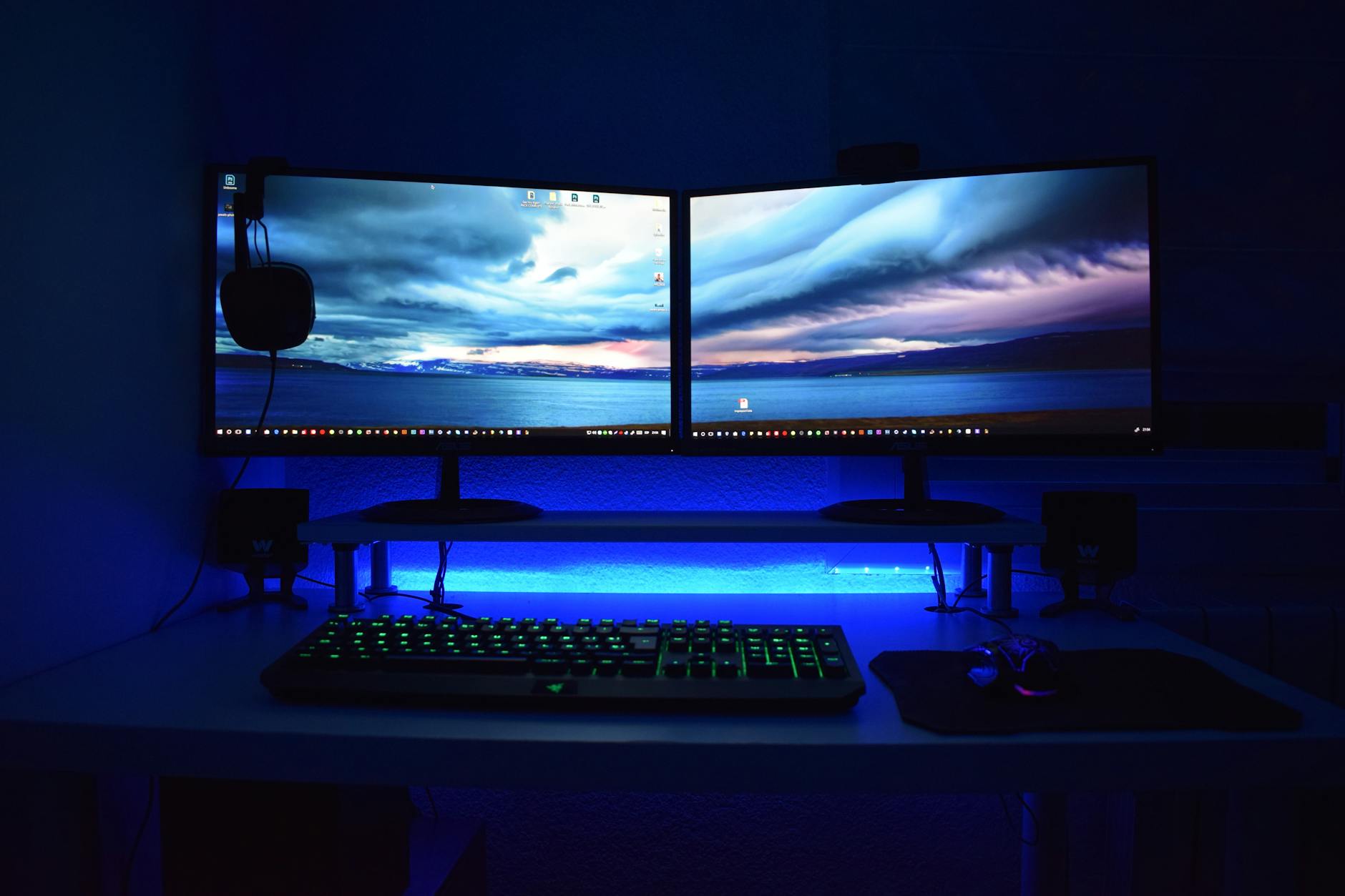 Photo by XXSS IS BACK / Pexels
Dual monitors increase productivity by 20-42% in documented studies of information workers — by reducing window switching and keeping reference material visible alongside active work. The setup is straightforward once you understand the three variables that determine whether it works cleanly: cable compatibility, GPU output capacity, and ergonomic placement. Getting any of these wrong produces flickering, limited resolution, or neck strain that undermines the entire point.
Checking Your Computer's Output Ports
Before buying a second monitor, verify your computer has two video output ports. Desktop PCs with a dedicated GPU typically have 3-4 DisplayPort or HDMI ports on the GPU. Laptops typically have 1 HDMI or USB-C Thunderbolt port — and often only one can output video simultaneously. MacBooks (2016-present) exclusively use USB-C Thunderbolt ports. Many Windows laptops have one HDMI and one USB-C — the USB-C may or may not support DisplayPort Alt Mode (video output); check the manufacturer's spec sheet. Intel integrated graphics support up to 3 independent displays. AMD integrated graphics (Ryzen laptops) typically support 1-2 external displays. NVIDIA/AMD discrete GPUs support 4+ displays. If your laptop has only one video-out port, you need either a USB-C hub with DisplayPort Alt Mode or a Thunderbolt docking station — not a generic USB hub, which lacks the bandwidth for video output.
Cable and Adapter Compatibility
DisplayPort is the preferred standard for dual-monitor setups — it supports higher refresh rates (up to 240Hz at 1440p, 144Hz at 4K) and daisy-chaining (one DisplayPort cable from GPU to Monitor 1, then a second DP cable from Monitor 1 to Monitor 2 — no additional GPU port needed on monitors that support MST). HDMI 2.0 supports 4K at 60Hz on one cable — fine for most office use. HDMI 2.1 supports 4K at 120Hz and 8K. USB-C with DisplayPort Alt Mode (not plain USB) carries video signal — verify the port and cable both support Alt Mode. Thunderbolt 3/4 cables always carry video (40 Gbps bandwidth, can drive two 4K displays simultaneously). Active adapters (USB-C to HDMI, USB-C to DisplayPort) add a chip that converts signal — passive adapters only work when the source port natively supports the target signal. When in doubt, buy a name-brand active adapter (Cable Matters, Club3D) rather than a generic passive adapter.
Monitor Placement and Ergonomics
The most common dual-monitor mistake is placing both screens directly in front and angling them outward — this forces constant head turning and accelerates neck strain. Correct placement for a primary-secondary setup: primary monitor directly in front at arm's length, secondary monitor to the side at a 30-45° angle (not 90°). Top of both screens at or slightly below eye level. Bezel-to-bezel the screens as closely as possible — a gap causes your eyes to work harder to track across the visual field. For equal-use setups (both monitors used constantly): place both screens symmetrically, rotated so bezels nearly touch at center. The center line falls between the two screens — your nose points at the gap. Dual monitor arms ($50-120) allow independent height, tilt, and angle adjustment that fixed stands cannot provide — worth the investment for any daily-driver setup. See our best dual monitor arms and best docking stations for dual monitors.
Matching Monitors for Dual-Display Use
Mismatched monitors (different brands, sizes, or refresh rates) work but create friction: different color profiles mean side-by-side content looks inconsistent, different heights require adapter blocks or dual arms, and different refresh rates force the GPU to run both at the lower rate (or manage two separate modes). For the cleanest setup: buy identical monitors. If buying a second monitor to pair with an existing one: match the resolution and refresh rate at minimum. Panel type differences (IPS vs VA) affect color accuracy significantly — working across an IPS and a VA panel simultaneously is noticeable for any color-critical work. Ultrawide monitors (3440x1440 or 5120x1440) replace a two-monitor setup entirely by providing the horizontal width without the center bezel — worth considering if cable management and seamless workspace are priorities.
Operating System Setup
Windows: right-click desktop → Display Settings → detect displays → Arrange to match physical positions. Set the "Make this my main display" for whichever monitor holds the taskbar. Mac: System Settings → Displays → Arrangement → drag the menu bar icon to the primary screen. Both OSes support: extend (two independent desktops — most useful for productivity), mirror (both show the same image — for presentations), and main display only (disables secondary). Enable "Snap Assist" on Windows (drag a window to screen edge) to quickly tile applications. On Mac, Mission Control + virtual desktops let each monitor maintain its own application spaces independently.
How We Evaluated This Guide
Productivity statistics from peer-reviewed research on multi-monitor workflows. Cable compatibility verified against DisplayPort 1.4, HDMI 2.0/2.1, and USB-C Alt Mode specifications. Ergonomic placement recommendations based on OSHA ergonomics guidelines for display terminal use.
How We Analyze Products
We analyze Amazon review data — often thousands of reviews per product — to surface patterns that individual buyers miss. Our process aggregates star ratings, review counts, and buyer sentiment at scale, identifying which strengths and weaknesses appear consistently across the largest review samples available.
Each product earned its placement through data: total review volume, average rating, and the specific praise and complaints that repeat most often across buyers. No manufacturer paid for placement on this page. Products appear here because buyers endorsed them at scale, not because a company asked us to feature them.
We use AI to summarize review sentiment — not to fabricate opinions, but to condense what thousands of buyers actually wrote into a readable format. The pros and cons you see reflect the most common themes found in verified purchaser reviews, paraphrased for clarity. We do not claim to have accessed Reddit, YouTube, or specific publications in generating these summaries.
Prices shown reflect Amazon pricing at the time this page was last generated. Click “See Today’s Price” to get the current live price on Amazon. Read our full methodology →