Home › Tech › How to Choose a Monitor: Size, Resolution, Panel Type & Use Case (2026)
How to Choose a Monitor: Size, Resolution, Panel Type & Use Case (2026)
By MyAwesomeBuy Research Team · Updated April 8, 2026 · Our Methodology
6,261+ reviews analyzed
No manufacturer paid for placement. Rankings based on verified buyer review data.
About This Guide
24" 1080p: budget office/general use. 27" 1440p: the sweet spot — most people should buy this. 27" or 32" 4K: photo/video editing, creative work. 34" ultrawide: video editing, immersive gaming, multitasking without dual monitors. Panel: IPS for color accuracy, VA for contrast/dark rooms, OLED for best-of-everything (premium price). Gaming: 144Hz minimum. Office: 60Hz fine. Focus on ergonomics (height/tilt/swivel).
How to Choose a Monitor Buying Guide
Photo by cottonbro studio / Pexels
Quick Verdict: Our top pick is the Dell UltraSharp U2722D 27" QHD Monitor (Best Overall) — consistently top-rated in its category. Priced at $312.73.
Budget Pick: The ASUS ProArt Display PA278QV 27" WQHD Monitor at $189 — a solid choice for budget-conscious buyers.
Quick verdict: 24" 1080p: budget office/general use. 27" 1440p: the sweet spot — most people should buy this.
The Four Variables That Decide Everything
Before you look at a single spec sheet, answer these four questions. Your answers eliminate 80% of the options.
1. Size: How far are you from the screen and how much desk space do you have?
2. Resolution: What are you doing on this monitor? (Gaming vs photo editing vs word processing)
3. Panel type: What do you value most — color accuracy, contrast ratio, or response time?
4. Use case: Gaming, office work, creative work, coding, or multimedia?
Monitor size is measured diagonally in inches. The "right" size depends on your viewing distance — how far your eyes are from the screen.
The rule: Sitting distance (in inches) ÷ 1.6 = ideal monitor diagonal size. At a standard desk, your face is typically 24-30 inches from the screen.
28-36 inches (deeper desk, standing desk)
24 inch: The entry-level standard. Fits any desk, comfortable for 1080p at normal viewing distance. Once the default; now feels small for extended work sessions.
27 inch: The current sweet spot. Large enough to have two windows side by side comfortably, small enough to avoid excessive head movement. The vast majority of "best monitor" recommendations land here.
32 inch: A meaningful step up for multitasking and creative work. Requires a deeper desk and more head movement. Excellent for coding (seeing more code), video editing timelines, and spreadsheet-heavy work.
34 inch ultrawide (21:9 aspect ratio): The alternative to dual monitors. More immersive, seamless (no bezel gap), excellent for video editing where timeline width matters. The compromise: curved distortion at edges, some software doesn't handle ultrawide well, gaming support is inconsistent.
Dual monitors vs ultrawide: Dual monitors give you more total pixels, flexibility to orient them at different angles, and the ability to use monitors of different sizes for different tasks (primary + reference). Ultrawide gives you seamless continuity, no bezel gap, and a more immersive gaming experience. Both are valid. Ultrawide wins for video production; dual wins for general productivity.
Resolution determines sharpness — how many pixels fit into the screen's physical size. The combination of resolution + screen size determines pixel density (PPI) — the actual sharpness you see.
On 24 inch: ~92 PPI — sharp and clear, perfectly usable
On 27 inch: ~82 PPI — starting to look soft up close
On 32 inch: ~69 PPI — noticeably soft, text looks fuzzy
The rule: 1080p is good on 24-inch, acceptable on 27-inch, poor on 32-inch.
Who should buy 1080p: Budget-conscious office users on 24-inch screens, pure gamers who prioritize frame rate over resolution (1080p is easier to push to 165+ Hz), anyone whose GPU can't power higher resolutions.
On 24 inch: ~122 PPI — excellent
On 27 inch: ~109 PPI — the ideal combination. Sharp text, detailed images, mid-tier GPU friendly.
On 32 inch: ~92 PPI — good
The 27-inch 1440p monitor is the universal sweet spot. It's the resolution/size combination that delivers the best balance of sharpness, GPU requirements, and price. The Dell S2722QC and LG 27GN800-B are representative benchmarks. Nearly every "what monitor should I buy" question for work or gaming lands here.
On 27 inch: ~163 PPI — excellent sharpness, photos and graphics look stunning
On 32 inch: ~138 PPI — excellent
GPU requirement: 4K gaming requires a powerful GPU (RTX 4070+ or equivalent). 4K office/browsing requires no GPU — even integrated graphics handles it.
Who should buy 4K: Photographers (you'll see every detail in your images), video editors (working in native resolution), graphic designers, and anyone doing precision visual work. Also worth it for general office use on a 32-inch if you sit further away.
4K gaming: Beautiful, but demands dramatically more GPU power. At 4K, you need a high-end discrete GPU to hit smooth frame rates. 1440p offers nearly as good visual quality for gaming at 60-70% of the GPU cost.
The ultrawide resolution packs 1440p height into a wider frame. Roughly 33% more horizontal pixels than 27-inch 1440p. The productivity and immersion gains are real; the GPU demands and software compatibility issues are equally real.
Best for: 4K content creation and color-accurate work
“LG's 27UK850-W brings true 4K resolution with HDR10 and USB-C charging to a 27" IPS panel — the best value 4K monitor for creators who need pixel density without gaming monitor prices.”
The LG 27UK850-W delivers 4K resolution in a 27-inch panel at $368.99 — which sounds premium until you realize the ASUS ProArt PA278QV at rank 3 provides nearly the same color accuracy at $189.00 with QHD instead of 4K. Whether 4K matters on a 27-inch display depends on your viewing distance and content. At a typical desk distance of 24–28 inches, the pixel density difference between QHD and 4K is visible but subtle for most work.
Where the LG earns its rank 2 Best Value label is the USB-C connectivity with 60W charging, HDR10 support, and wide color gamut (sRGB 99%, DCI-P3 95%) at a price that undercuts many competing 4K monitors. Compared to the Dell UltraSharp U2722D at rank 1 ($312.73), you're spending $56 more for a resolution upgrade and similar connectivity — the Dell's 90W USB-C delivery edges the LG's 60W if you have a power-hungry laptop.
The honest trade-off: this monitor's IPS panel is excellent for color work, but its 60Hz refresh rate puts it behind the gaming-oriented options at ranks 4 and 5. The ROG Swift PG279QM at rank 4 ($199.00) and the LG UltraGear at rank 5 ($379.99) both prioritize high refresh rates over color accuracy. If your workflow touches photo editing, video work, or any color-sensitive task, the 27UK850-W is the right call. If you game after hours and want one monitor to do both well, none of the options here are perfect — the UltraGear comes closest.
monitor, base, power cord, hdmi cable, display port, usb type-c, cd
Contrast Ratio
1000:1(Typ)
Item Type Name
LG 27UK850-W 27-Inch 4K UHD IPS Monitor with FreeSync and USB Type-C Connectivity
Total Usb Ports
1
Has Color Screen
Yes
Best Sellers Rank
#134,656 in Electronics (See Top 100 in Electronics) #2,868 in Computer Monitors
Native Resolution
3840x2160
Power Consumption
50 Watts
Compatible Devices
[Devices with HDMI, DisplayPort, USB, USB Type-C, or DP to DP connectivity; Suitable for personal, gaming, and business uses]
Display Technology
LCD
Additional Features
Anti Glare Screen, Height Adjustment, High Dynamic Range, Pivot Adjustment, Tilt Adjustment, USB Hub
Total Usb 3.0 Ports
1
Warranty Description
Limited - 1 year parts and labor
Hardware Connectivity
USB
Connectivity Technology
DisplayPort, HDMI, USB, USB Type C
Item Dimensions D X W X H
28"D x 26"W x 16"H
Specific Uses For Product
personal, gaming, business
Display Resolution Maximum
3840 x 2160 Pixels
Total Number Of Hdmi Ports
1
Number Of Component Outputs
1
Global Trade Identification Number
00719192617476
Picture Quality Enhancement Technology
HDR, Fast Response Time, Wide Color Gamut, Super Resolution+, Dual Controller (if applicable)
Also Excellent
ASUS ProArt Display PA278QV 27" WQHD Monitor
$189
at Amazon
Best for: photographers, video editors, and designers
“The ASUS ProArt PA278QV is the best monitor for creative work under $350 — factory-verified ΔE<2 color accuracy means what you see matches what gets printed or published, without sending it out for ca”
At $189.00, the ASUS ProArt PA278QV is the most straightforward purchase recommendation on this page for anyone who doesn't have a specific need for USB-C power delivery or gaming refresh rates. The 27-inch WQHD IPS panel covers 100% sRGB and 75% DCI-P3, factory calibrated to Delta E < 2 — specs that match monitors costing twice as much. For designers, photographers, and content creators working in standard color spaces, this is the honest value pick.
The comparison against rank 1 ($312.73 Dell UltraSharp U2722D) and rank 2 ($368.99 LG 27UK850-W) is straightforward: both of those monitors offer USB-C with charging capability, which the ProArt lacks. If you use a single-cable USB-C workflow with a laptop, the $124–$180 premium for ranks 1 or 2 is justified. If you use a traditional multi-cable desktop setup, the ProArt gives up nothing meaningful and saves real money.
The knock on this monitor is connectivity: no USB-C, no HDR worth mentioning, and 75Hz rather than 60Hz (a minor gaming improvement but still not competitive with ranks 4 and 5). Build quality is solid — ASUS ProArt line has a strong track record — and the stand offers full ergonomic adjustment. For a primary productivity and color work monitor where USB-C isn't a requirement, $189 is a difficult price to argue against. It ranks third mainly because of the missing USB-C hub functionality that increasingly defines modern monitor setups.
ASUS ProArt Display PA278QV 27” WQHD (2560 x 1440) Monitor, 100% sRGB/Rec. 709 ΔE < 2, IPS, DisplayPort HDMI DVI-D Mini DP, Calman Verified, Eye Care, Anti-glare, Tilt Pivot Swivel Height Adjustable
Total Usb Ports
4
Has Color Screen
Yes
Best Sellers Rank
#1,621 in Electronics (See Top 100 in Electronics) #64 in Computer Monitors
Native Resolution
2560x1440
Power Consumption
12.5 Watts
Compatible Devices
Laptop
Display Technology
LCD, LED
Additional Features
Blue Light Filter, Built-In Speakers, Flicker-Free, Height Adjustment, Pivot Adjustment
Total Usb 3.0 Ports
4
Warranty Description
3 Year Warranty with ARR
Hardware Connectivity
DisplayPort, HDMI, Mini-DisplayPort, USB 3.0
Connectivity Technology
HDMI, 4x USB 3.2 Gen 1 Type-A, display port
Item Dimensions D X W X H
15.04"D x 24.21"W x 8.9"H
Specific Uses For Product
Business, Gaming, Personal
Display Resolution Maximum
2560 x 1440 Pixels
Number Of Height Positions
3
Total Number Of Hdmi Ports
1
Picture Quality Enhancement Technology
Yes
Worth Considering
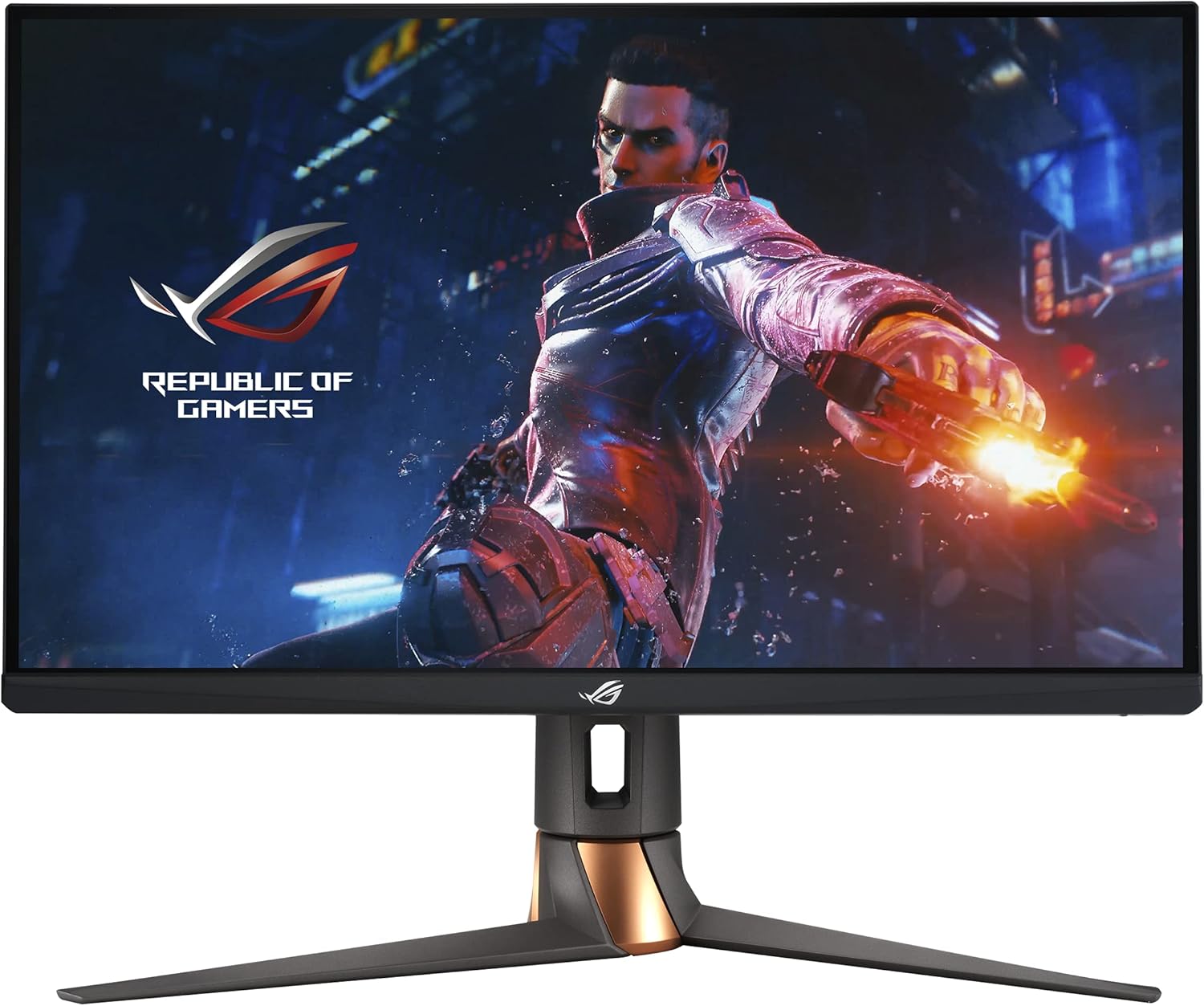
ASUS ROG Swift PG279QM
$199
at Amazon
Best for: high-refresh-rate competitive gaming with NVIDIA GPU
“The ASUS ROG Swift PG279QM delivers 240Hz Fast IPS performance with a native G-SYNC module — the choice for competitive gamers who want the absolute fastest 1440p response with NVIDIA Reflex support.”
The ASUS ROG Swift PG279QM is the gaming-first option on this page, and at $199.00 it's priced surprisingly close to the ASUS ProArt PA278QV at rank 3 ($189.00) — which makes the comparison direct and important. The ROG Swift offers 240Hz refresh rate and 1ms response time; the ProArt offers Delta E < 2 color calibration. Those two features don't really overlap, so the choice comes down to what you actually do.
Against the Dell at rank 1 ($312.73) and LG at rank 2 ($368.99), the ROG Swift is cheaper and faster but trades away USB-C hub functionality and professional color accuracy. If gaming is a meaningful part of your daily use — even a few hours on weekends — the refresh rate difference between 60Hz and 240Hz is not subtle. Motion clarity, input lag reduction, and overall smoothness are dramatically better at 240Hz. For competitive gaming, this is the only monitor on this page worth considering.
The honest caveat: the ROG Swift's IPS panel covers 165% sRGB, which sounds impressive but IPS glow and slight color inconsistencies at the edges are more noticeable than on the professionally calibrated panels at ranks 1–3. The $199 price point appears to reflect a sale or older stock — verify current pricing before purchasing, as ROG gaming monitors typically run $300+. At $199 it's an exceptional value for gaming; at full MSRP the calculus changes.
Full Specs & Measurements
Upc
192876927205
Asin
B08LCNWQWL
Brand
ASUS
Color
BLACK
Shape
Rectangular
Voltage
240 Volts
Brightness
400 nits
Model Name
PG279QM
Resolution
QHD Wide 1440p
Color Gamut
1.5
Is Electric
No
Item Weight
17.86 Pounds
Pixel Pitch
9.2
Screen Size
27 Inches
Aspect Ratio
16:9
Display Type
LED
Manufacturer
ASUS
Model Number
PG279QM
Refresh Rate
240 Hz
Adaptive Sync
G-Sync
Mounting Type
Wall Mount
Response Time
1 Milliseconds
Screen Finish
Matte
Series Number
279
Viewing Angle
178 Degrees
Built-In Media
Color pre-calibration report DisplayPort cable HDMI cable Power adapter Power cord Quick start guide ROG sticker USB 3.0 cable Warranty Card
Contrast Ratio
1,000:1
Item Type Name
monitor
Processor Count
1
Total Usb Ports
2
Has Color Screen
Yes
Best Sellers Rank
#160,694 in Electronics (See Top 100 in Electronics) #3,274 in Computer Monitors
TÜV Flicker-free TÜV Low Blue Light VESA DisplayHDR 400 G-SYNC
Frequently Asked Questions
What monitor size is best for a home office?
27 inches for most people. At a standard desk (24-28 inches from your face), 27" gives you enough screen space to have two windows side by side without excessive head movement. Pair it with 1440p resolution for sharp text. A 32-inch is worthwhile if you use multiple applications simultaneously or work with large spreadsheets/code.
Is 1440p worth it over 1080p?
Yes, on a 27-inch monitor. 1080p on a 27-inch screen is ~82 PPI — noticeably soft for text work. 1440p on the same screen is ~109 PPI — sharp, comfortable for all-day use. The price difference ($50-100 more) is worth it. On a 24-inch screen, 1080p is perfectly sharp (~92 PPI) and the upgrade is less critical.
What is the difference between IPS and VA panels?
IPS: better color accuracy and viewing angles, good for office and creative work, slight gray-black (low contrast). VA: much higher contrast (deep blacks), slightly narrower viewing angles, slightly slower response. IPS for color-critical work and bright rooms. VA for movie watching and dark room use.
Do I need a 144Hz monitor if I don't play games?
No. 60Hz is completely comfortable for office work, web browsing, video streaming, and everything non-gaming. The smoothness advantage of 144Hz is most noticeable in fast-moving game content. Spending more on a 144Hz panel vs a better IPS panel with good color accuracy is the wrong trade-off for non-gamers.
What is G-Sync and FreeSync and do I need them?
Adaptive sync technologies that prevent screen tearing by synchronizing the monitor's refresh rate with your GPU's output. FreeSync (AMD standard) is on most monitors for free. G-Sync (Nvidia certified) costs $50-100 more. 'G-Sync Compatible' monitors are FreeSync monitors validated to work with Nvidia GPUs. You need adaptive sync for a smooth gaming experience; it doesn't matter for office use.
What is monitor burn-in and should I worry about it?
Burn-in (or image retention) occurs when a static image displayed for extended periods causes permanent image artifacts on OLED panels. LCD monitors (IPS, VA, TN) are not susceptible to burn-in. For OLED computer monitors, burn-in is a long-term risk if the same static UI elements (taskbar, browser toolbar) are on-screen for most of a monitor's use life. Modern OLED monitors have mitigation features; it's a consideration, not a dealbreaker.
Do I need a 4K monitor for regular office work?
Not required, but nice on 27-inch and larger. 4K on a 27-inch screen produces ~163 PPI — text is noticeably sharper than 1440p. For word processing and spreadsheets, the clarity improvement is real. It requires no special GPU for office use (integrated graphics handles 4K at 60Hz easily). The main cost is the premium on 4K panels vs 1440p equivalents.
Is a monitor arm worth it?
Yes, for most desk setups. A monitor arm replaces the base stand, letting you position the screen at any height, tilt, and distance with one-finger adjustment. This eliminates neck strain from fixed-height monitors, frees up significant desk space, and makes the ergonomic setup genuinely comfortable. A quality arm like the Ergotron LX ($50-80) is one of the highest ROI desk upgrades.
We analyze Amazon review data — often thousands of reviews per product — to surface patterns
that individual buyers miss. Our process aggregates star ratings, review counts, and buyer
sentiment at scale, identifying which strengths and weaknesses appear consistently across
the largest review samples available. The 6,261+ reviews analyzed on this page represent real verified-purchase feedback from Amazon buyers.
Each product earned its placement through data: total review volume, average rating, and the
specific praise and complaints that repeat most often across buyers. No manufacturer paid for
placement on this page. Products appear here because buyers endorsed them at scale, not
because a company asked us to feature them.
We use AI to summarize review sentiment — not to fabricate opinions, but to condense what
thousands of buyers actually wrote into a readable format. The pros and cons you see reflect
the most common themes found in verified purchaser reviews, paraphrased for clarity. We do not
claim to have accessed Reddit, YouTube, or specific publications in generating these summaries.
Prices shown reflect Amazon pricing at the time this page was last generated. Click
“See Today’s Price” to get the current live price on Amazon.
Read our full methodology →
Affiliate disclosure: When you buy through our links, we may earn
a small commission at no extra cost to you. This helps us keep the reviews free and
the data updated. Our recommendations are based on data, not who pays us.
Learn more →
 Photo by cottonbro studio / Pexels