How to Set Up a Home Office (2026 Guide)
The LapGear Home Office Lap Desk at $24.99 is the top pick for portable workstation setup — device ledge holds a tablet or laptop at an ergonomic angle, with an integrated mouse pad and built-in cable pass-through for organized cord management.
At a Glance
How to Set Up a Home Office (2026 Guide) Buying Guide
 Photo by KATRIN BOLOVTSOVA / Pexels
A functional home office is not about having a beautiful desk on Instagram — it is about removing the environmental factors that reduce focus, cause physical strain, and interrupt deep work. Most home office setups fail in the same four ways: wrong location (too much noise or foot traffic), inadequate lighting (causes eye strain and fatigue within two hours), poor ergonomics (back and neck pain that accumulates over months), and no cable management (visual chaos that increases cognitive load). Fixing these costs far less than a standing desk and matters more.
Location: The Most Underrated Decision
The room you choose sets a ceiling on everything else. The two non-negotiables are natural light and acoustic separation. Natural light on your non-screen-facing side (not directly behind or in front of the monitor) reduces eye fatigue and regulates circadian rhythm — studies from the American Optometric Association link adequate daylight to a 70% reduction in afternoon eye strain complaints among desk workers. Acoustic separation matters because even low-level background noise (household activity, street sound) increases cognitive load for tasks requiring reading, writing, or verbal calls. A closed door cuts ambient noise by 25-35 dB depending on door construction and gap sealing. If no dedicated room exists, position the desk in the quietest corner farthest from high-traffic areas and use a noise-canceling headset for calls. Avoid setting up facing a window — direct sunlight on the screen creates glare that causes constant squinting and monitor brightness compensation that washes out color accuracy.
Internet: The Infrastructure That Everything Else Depends On
Wi-Fi works for most home office tasks but fails predictably during video calls, large file transfers, and multi-device peak periods. A wired Ethernet connection via Cat6 cable eliminates packet loss, reduces latency from 15-50ms (Wi-Fi) to 1-5ms (wired), and removes the variable of router placement from your work reliability equation. Cat6 cables cost $8-15 for a 25-foot run and require only a free router port and an available network card port — most laptops and all desktops have one, or a USB-C Ethernet adapter costs $12-20. If Ethernet is not practical, position the router as close to the office as possible (signal strength halves with each wall and drops significantly at 30 feet). Test your actual bandwidth at speedtest.net during your typical work hours — if you consistently see below 25 Mbps download or 5 Mbps upload, your ISP plan, not your setup, is the bottleneck.

Ergonomics: Chair Before Desk
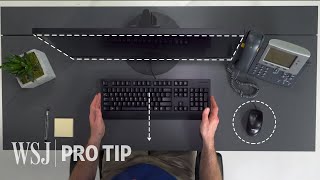
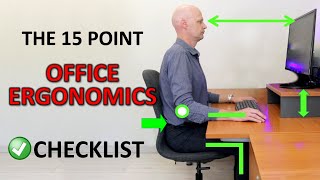
Most people buy the desk first and fit the chair to it. The correct order is reverse: your chair determines your seated height, which determines the desk height, monitor height, and keyboard position. The ergonomic sequence starts with the chair adjusted so your feet are flat on the floor and your thighs are parallel to it. From that seated position, your desk should place the keyboard at a height where your elbows are at 90-100 degrees with your wrists floating neutrally — not bent up or down. If a fixed-height desk is too tall for this, a keyboard tray drops the keyboard 3-4 inches and is a $30-60 fix. Monitor height should place the top of the screen at or slightly below eye level at arm's length distance (roughly 20-28 inches). Most monitors require a stand or monitor arm to reach this height — the WALI adjustable stand ($7.99) raises a monitor 2-5 inches; a full monitor arm ($25-60) provides full height and depth adjustment. See our best ergonomic chairs and best chairs for lower back pain for specific picks.
Lighting: Layer It, Don't Rely on Overhead
Single overhead lighting creates harsh shadows on the desk and screen glare when positioned directly behind or above the monitor. Effective home office lighting uses three layers: ambient (overhead or floor lamp for general room brightness), task (desk lamp aimed at papers or keyboard, not at the screen), and bias lighting (LED strip behind the monitor that reduces perceived contrast between the bright screen and dark wall, reducing eye fatigue). Desk lamp color temperature should be 4000-5000K for focused work — warm 2700K bulbs make afternoon work feel sluggy. A desk lamp with adjustable color temperature and brightness handles both morning focus work and late-afternoon calls where warmer light is less fatiguing. See our best LED desk lamps for specific recommendations.
Cable Management: The Overlooked Productivity Factor
Visible cable chaos is not just aesthetic — it increases cognitive load and makes moving equipment for reconfiguration a 20-minute untangling exercise. The minimum effective cable management system: velcro cable ties ($24.99 for 100) to bundle desk cables, a cable tray under the desk ($15-25) to route power strips and excess cable length off the floor, and adhesive cable clips along the desk edge and wall to route monitor and keyboard cables. Label each cable at both ends with a tape flag or cable label — the 10 minutes this takes saves 30 minutes every time you need to trace a connection or move equipment. Power strip positioning matters: mount it under the desk rather than on the floor to eliminate the most-tangled section of cable. See our best cable management picks.

Common Mistakes to Avoid
The three most common and expensive home office mistakes: (1) Buying a gaming chair because it looks ergonomic — gaming chairs are designed for reclined media consumption, not forward-leaning desk work; most lack the lumbar support depth and seat pan tilt that prevents lower back fatigue during 6-8 hour desk sessions. (2) Using a laptop on the desk surface — a laptop on a desk places the screen 8-12 inches below eye level, which forces sustained neck flexion that causes upper trapezius and cervical strain within weeks. A laptop stand + external keyboard and mouse costs $40-60 and eliminates this entirely. (3) Skipping the monitor arm — a $30-60 monitor arm reclaims 6-12 inches of desk depth, allows instant monitor repositioning for different tasks, and enables the correct eye-level screen position that a monitor on its stock stand rarely achieves.
The shortlist, with prices
- LAPGEAR Home Office Lap Desk with Device Ledge — $34.99. Built-in phone holder. Against it: No wrist rest.
- Bonsaii Paper Shredder for Home Use — $32.29. 6-sheet cross-cut. Against it: Only 6-sheet capacity — slow for larger shredding sessions.
- Scotch Thermal Laminator — $44.99. 2-roller system. Against it: Warm-up time longer than professional laminators.
Where each one makes sense
The LAPGEAR Home Office Lap Desk with Device Ledge at $34.99 is the default choice on this page — Built-in phone holder.
Watch Before You Buy
“The LapGear Home Office Lap Desk with Device Ledge and Mouse Pad features built-in phone holder. 4.7 stars from 50,090 Amazon reviews signal consistent reliability.”
See Today’s Price →What we like
- Built-in phone holder
- Cable management slot
- Dual cushion base for stability
- Fits 17-inch laptop
Watch out for
- No wrist rest
- Phone holder fixed position
“The Bonsaii C237-B handles up to 6 sheets at once in a cross-cut pattern, destroying documents into unreadable confetti for secure home office use. Its 3.4-gallon bin cuts down on emptying…”
See Today’s Price →What we like
- 6-sheet cross-cut
- 3.4 gallon bin
- Compact footprint
- Auto stop safety
Watch out for
- Only 6-sheet capacity — slow for larger shredding sessions
- Bin fills quickly
- Entry-level build quality shows in the plastic finish

“The Scotch Thermal Laminator uses a dual-roller system for smooth, bubble-free results on documents, labels, and reference cards. It warms up in minutes and handles standard laminating pouches up to…”
See Today’s Price →What we like
- 2-roller system
- Hot and cold modes
- Standard home size
- Scotch quality
Watch out for
- Warm-up time longer than professional laminators
- Pouches not included — extra purchase
- Jamming possible with thick pouches
Frequently Asked Questions
What do I need to set up a home office?
Should I use a laptop or desktop for a home office?
How much space do I need for a home office?
Is wired internet better than Wi-Fi for a home office?
What is the correct monitor height for a home office?
How do I reduce noise in a home office?
How We Analyze Products
We analyze Amazon review data — often thousands of reviews per product — to surface patterns that individual buyers miss. Our process aggregates star ratings, review counts, and buyer sentiment at scale, identifying which strengths and weaknesses appear consistently across the largest review samples available. The 115,809+ reviews analyzed on this page represent real verified-purchase feedback from Amazon buyers.
Each product earned its placement through data: total review volume, average rating, and the specific praise and complaints that repeat most often across buyers. No manufacturer paid for placement on this page. Products appear here because buyers endorsed them at scale, not because a company asked us to feature them.
We use AI to summarize review sentiment — not to fabricate opinions, but to condense what thousands of buyers actually wrote into a readable format. The pros and cons you see reflect the most common themes found in verified purchaser reviews, paraphrased for clarity. We do not claim to have accessed Reddit, YouTube, or specific publications in generating these summaries.
Prices shown reflect Amazon pricing at the time this page was last generated. Click “See Today’s Price” to get the current live price on Amazon. Read our full methodology →